
Your website is ready, perfectly designed, and backed by hours of work. You launch it with all the excitement in the world and, when you receive and eagerly open your first conversion form, what you find is a message in Russian or Turkish whose structure you cannot even understand. Sound familiar? Don’t worry, you are not alone.
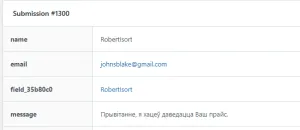
Why me? Why am I getting spam?
Sending mass advertising or fraudulent messages is almost older than the web itself, but despite that, it remains more common than any of us would like. It is generally done automatically by bots that either aim to flood half the web with advertising or pursue darker interests. Because yes, spam is not just annoying; it can also be dangerous and contain malicious links or phishing attempts. And, of course, at this point you may be wondering…
What is phishing?
Phishing is a type of online scam in which the attacker tries to deceive the user through an email, SMS, etc. Through it, they try to obtain sensitive data or information: bank details, personal data, confidential company data…
In short, form spam is a practice we will unfortunately encounter often and, besides being annoying, it can be dangerous. That is why it is necessary to have tools that can block the bots responsible for sending it or allow the website to automatically filter and discard toxic forms. That is the goal of this article.
What is a honeypot and how can I add one to my website?
The first tool, and one of the most commonly used, is the honeypot. It is simply a “trap” for bots: a fake field hidden from website users that we include in the form and that, therefore, no one except a bot that sees it in the code will be able to fill in.
This allows the server to determine which forms to discard (all those in which the “honeypot” field is filled in).
How to add a honeypot in Elementor
Adding a honeypot in Elementor is a very simple process, so it is worth trying. Just select the form where you want to include the honeypot and add a new “Honeypot” field type, which is already predefined:
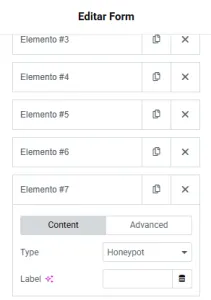
Adding a honeypot in Contact Form
For Contact Form, it is best to use an additional plugin, since it does not include the option to add a honeypot natively. This, for example, is one of the most widely used:
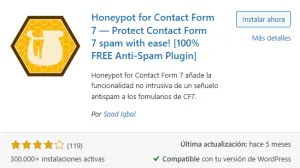
Once downloaded and activated, you will need to access one of your forms and insert this code anywhere in it:
[honeypot honeypot-field]
Simple, right?
Adding a honeypot in WPForms
If adding a honeypot in Elementor or Contact Form seemed simple, doing it with WPForms will feel effortless because it is already included by default. You can enable or disable it in Settings - General, but by default the “Enable anti-spam honeypot” option is enabled to give your forms an extra layer of security.
Adding a honeypot to an HTML website
If you do not use a CMS such as WordPress and want to include a honeypot in your page’s HTML code, one possible way to do it would be the following:
For the field name, use something unobtrusive such as “website”, “url”, “phone2”, etc.
Do not use type = “hidden”, as bots often ignore it.
Advantages of adding honeypots to forms
This is a simple security measure that we can implement quickly in our forms. Unlike reCAPTCHA, for example, the implementation is invisible to the user, which always provides a better UX. The user will not have to do anything other than submit the form as usual.
It is also a lightweight solution. As we will see later, solutions such as reCAPTCHA are heavier and can slow down website speed. With a honeypot, you will not need to worry about website speed.
What is reCAPTCHA?
Another option for protecting forms from fraudulent submissions or spam is to include reCAPTCHA in them. This is a Google service designed specifically for this purpose, allowing you to detect whether the person interacting with a form is a human or a robot.
Types of reCAPTCHA
Depending on the technology they use and how they interact with the user, there are currently mainly three different versions of reCAPTCHA:
v2: The typical “I’m not a robot” checkbox, which can include the “game” of choosing between different images (for example, traffic lights, cars, etc.).
v2 Invisible: Similar operation to v2, but without showing a checkbox or similar element to the user.
v3: The latest version available to date (released in 2018) works differently. Instead of giving the user a test to determine whether they are human or a bot, in Google’s own words, it examines the activity a user has had on different pages of your website and can identify attacker patterns more accurately. With v3, the system evaluates website interactions with a risk score and assigns a value from 0 to 1 based on user behavior, making it possible to infer the probability that it is a bot. Depending on how
So, is reCAPTCHA v3 better than v2?
Each version of reCAPTCHA, as we have seen, has its advantages and disadvantages. Therefore, choosing one option or the other will depend largely on the specific needs of the project or website we are working on.
As users, we have been living with reCAPTCHA v2 for a long time, so the UX experience, although it worsens, does not do so dramatically.
reCAPTCHA v3 does not interfere with UX in any way, but its operation can become somewhat more erratic depending on the risk score we assign.
How to configure reCAPTCHA in WordPress
To configure reCAPTCHA, you will need to access Google Cloud and create a new project. The best way to do this is through this URL.
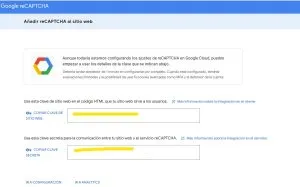
Once inside, you will need to choose which version you want to implement, enter the domain you want to protect, give the new Google Cloud Platform project a name, and click submit. Simple, right?
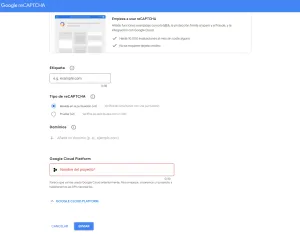
The tool will automatically generate the two keys (API KEY and SECRET KEY) that you will need to use in the builder you have on your website to finish configuring it:
How to add reCAPTCHA in Elementor
Adding reCAPTCHA in Elementor is very simple. Just go to Settings > Integrations and enter the API Key and Secret Key provided by the tool:
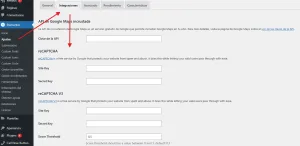
Depending on whether the reCAPTCHA we configured was v2 or v3, we will fill in one Elementor section or the other.
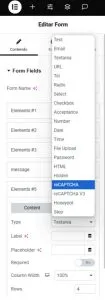
Finally, we will need to create a reCAPTCHA field in the form we want to protect, again with one option or the other depending on the version chosen:
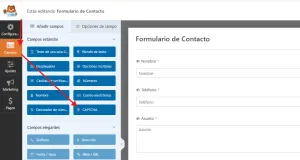
How to add reCAPTCHA in WPForms
The procedure with WPForms is very similar. It also has a reCAPTCHA section in its settings tab where you must enter the keys obtained:
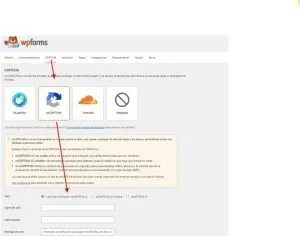
As in the previous case with Elementor, you will need to apply the protection to the forms you want through a new field:
Configure reCAPTCHA in Contact Form
The reCAPTCHA configuration process in Contact Form would be the same:
- Go to Contact > Integration
- In the reCAPTCHA section, click “Configure Integration”
- Enter the keys
- Now, depending on whether you are using reCAPTCHA v3 or v2:
For v3 (invisible, no checkbox): you do not need to add anything to the form; it is activated automatically.
For v2 (“I’m not a robot” checkbox): you must manually add the shortcode [recaptcha] to your form, wherever you want the captcha to appear.
One final recommendation: validate reCAPTCHA
It is common that, once the tool has been configured, Google Cloud itself asks us to validate the reCAPTCHA implementation through a POST request.
Using the different alternatives we have seen throughout the article, this is not necessary. Elementor, WPForms, and Contact Form will validate the integration automatically. However, since it is always advisable to confirm that our work has not been in vain, it is worth submitting a test through one of the forms protected with reCAPTCHA to confirm that the status of the reCAPTCHA project in Google Cloud changes to “Enabled”.


