
Migrating a WordPress website can be a complex task, but with the right tools and knowledge, it is a process that can be completed smoothly. In this article, we explore different ways to migrate a WordPress site to another server or domain. We will look at best practices and the tools available to make this process easier.
Things to consider before carrying out a migration
When approaching a hosting/WordPress provider migration, you need to be clear about what has to be migrated, namely:
- Files: This is what makes your CMS (WordPress/PrestaShop) work correctly. It is important to move all files to avoid possible issues on the new hosting. They are usually downloaded via SSH (the hosting provider handles this in 99% of cases) or with a script that connects the different panels (cPanel-cPanel / cPanel-Plesk).
- Databases: Just as important as the files. There are not always databases (in the case of plain HTML websites), but in 98% of cases there are. They must be migrated while, of course, preserving the database users and their passwords.
- Emails: If you do not have a dedicated service for this (such as Google Workspace), email is usually managed inside your hosting provider. In this case, most hosts use the cPanel panel, and this panel stores emails as files. So although normally this part is included under “Files”, you need to understand how the client has it set up to know how to proceed with this section.
In most hosting companies, if you purchase an annual plan, they migrate you for free. Even so, it is worth confirming this with the new hosting provider before signing up. Our recommendation is to send them a ticket/email telling them the total size of your website (or rather, the total space you are using on the hosting), as well as the server panel you have (cPanel/Plesk are the most commonly used).
Ways to migrate a WordPress site
If, for whatever reason, you have to migrate your website yourself, you should know there are several ways to proceed with migrating your WordPress website to your new hosting. Let’s look at them:
Manual migration via zip
The first option is to compress all the files from your current hosting and export them to the new one. In this case, we are going to prepare the guide for the cPanel panel, which is the most widely used.
- We are going to enter the file manager, which is essentially like FTP access from a web page (not exactly, but for practical purposes it is the same).
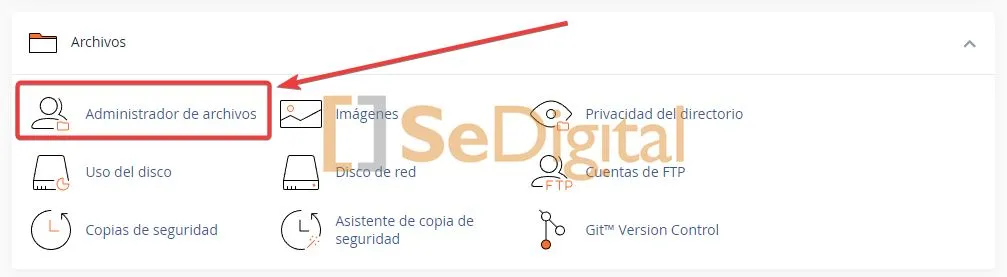
- Next, we go to the root folder of our website, which will generally be public_html.

- We select all the files and click compress.

- We select zip format and compress the files.

In this case, this whole process generates a .zip file with all the files we had on the old hosting, but we still need to extract the database. To do this, we have to go to phpMyAdmin.
- We access phpMyAdmin from cPanel.
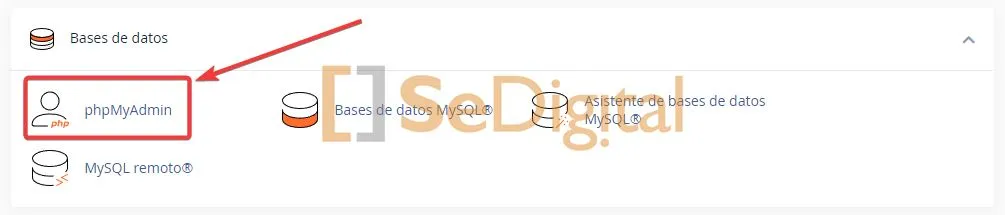
- We select the database where our WordPress is hosted (we pixelated the real name of our databases for security).

- We go to the Export section, leave the Quick option selected (there is no need to customize it), and click Export.
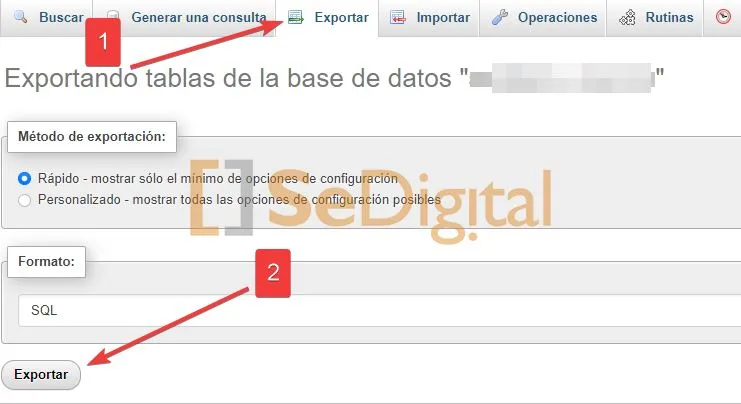
It will generate a .sql format file containing everything needed to create the tables and insert all the data into the future new database.
Migration via All-in-One Import
As an “alternative” (note that we put this in quotation marks because, although it can also be done, you need to understand the particularities of this method), we can also use the All-in-One Migration plugin, which you can download here: Link
This program works by making a backup of all the “non-common” elements in WordPress. To explain it a little better:
At file level, WordPress consists of three main folders:
- wp-admin: All the files that make your administration panel (back office) work.
- wp-content: All the files that the “user uploads”, including the theme, plugins, images, etc. This is the important one we want to “migrate”.
- wp-includes: All the files that include WordPress functionality.
Both wp-admin and wp-includes are common to all WordPress installations, as long as they are the same version. Only two things change: the database and the wp-content folder. Knowing this, and knowing that the plugin we mentioned only makes a copy of these two things, you need to be careful to install the same WordPress version on the new hosting as you had before.
Or, if you do not follow this recommendation and install a new version of WordPress, you may run into problems and incompatibilities with some themes/plugins.
Let’s get to it:
- Once the plugin is installed, we go to Export.
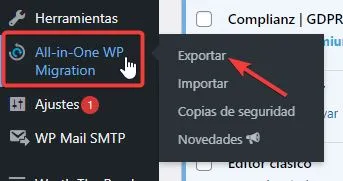
- We leave the advanced options untouched and directly click Export to -> File.
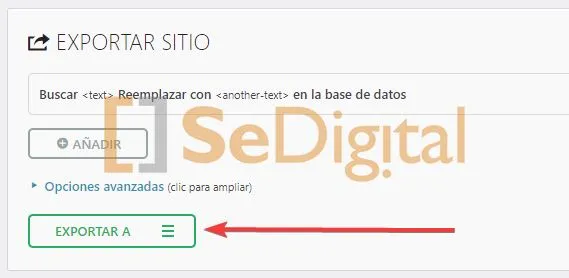
The process may take a few minutes, depending on the size of the files and the database. What it is doing is generating a file with its own .wpress extension that contains, as mentioned, files and database. Once it has finished, it will ask you to save the file.
Now the remaining steps are:
- Install WordPress on the new hosting.
- Install the All-in-One Migration plugin again on the new WordPress installation.
- Import the .wpress file.
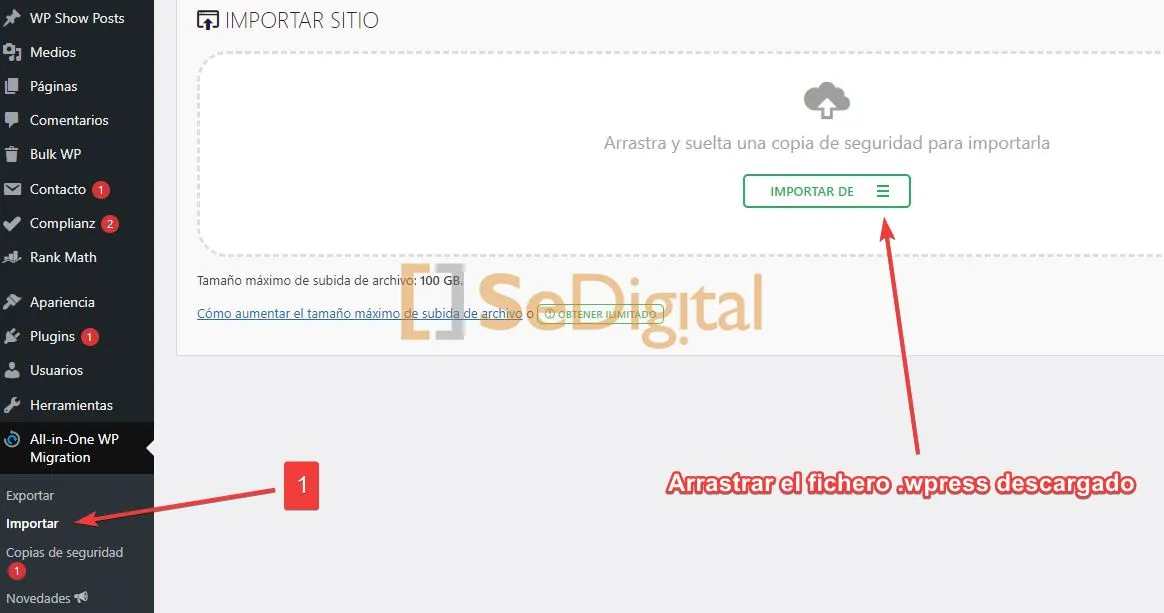
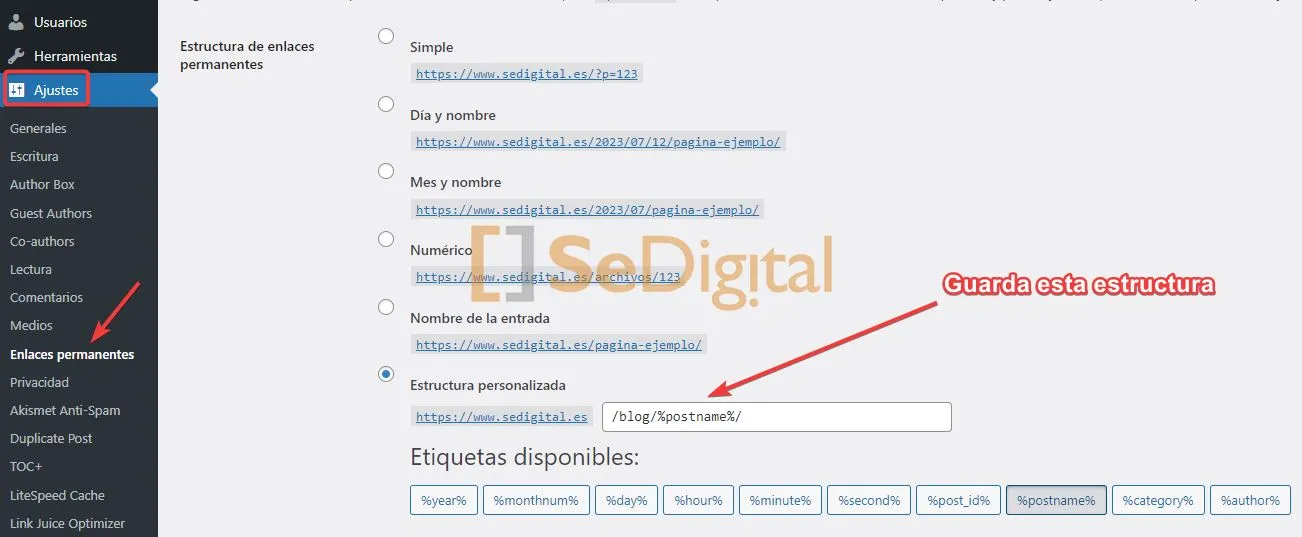
Once the process is complete, you will be able to access the administration panel with the old login details. We strongly recommend that you regenerate the .htaccess file. The easiest way is by changing the Permalinks settings. Remember to leave the configuration you already had; this is done so WordPress regenerates the file and leaves it as default.
Migration via hosting
As mentioned earlier, most hosting providers include the migration for free, although this depends on the hosting price. It is not unusual for them to set a kind of “minimum” to qualify for that free migration. If your hosting provider handles it, you need to give them the following information:
- cPanel access: So they can migrate the files/databases.
- Email list and passwords: Depending on where your emails are managed, they need the users and email accounts to replicate them on the new hosting and migrate the emails. If you use an external email service such as Google Workspace, this step is NOT necessary.
Remember that you may also need to manage the domain transfer. Although it is not mandatory, it is common to have the domain registered with the same registrar as the hosting provider. As a note, .es domains do not use a verification code, as they are verified through a link sent to the email address of the administrative contact for that domain. For .com domains, the authcode is required to request the transfer.


